
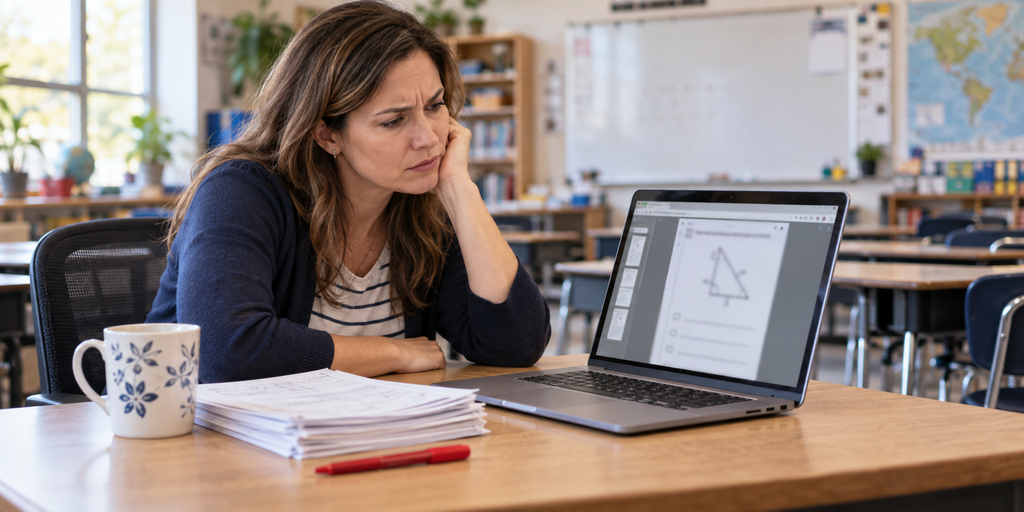
Last weekend I spent some time creating a PDF worksheet for my 7th-grade science class. The worksheet was to help review the concepts related to the water cycle. I only needed to create a 2 page worksheet and I wanted to draw a simple diagram on the 2nd page to show the 3 processes of the water cycle; evaporation, condensation and precipitation.
I’ve done more difficult things on the computer before and thought drawing this simple diagram shouldn’t be that hard.
I started looking for an online program to help me with this and found one that allows you to upload your document and gives you a preview. I saw that my diagram was off center and very fuzzy. I then hit the export button and a few seconds later got a copy of my file, but the preview was off center and fuzzy.
I decided to try and take a different approach. I opened my PDF and converted it to a Word document. I then went to the Word document and inserted my diagram. Once I was done, I converted the Word document to a PDF. Again, I lost a battle to the documentation format warriors.
That’s when I realized: adding an image to PDF isn’t complicated because the task is hard. It’s complicated because most tools aren’t built for it.
Alt: how to add images to pdf
Why Adding an Image to a PDF Is Harder Than It Should Be
A major difference between a Word document and a PDF is that a PDF is a final copy of a document. After a page of a PDF is created, that page cannot be changed like a Word document page can be changed. When a user of a PDF application is prompted to “add an image,” they are allowed to place an object on that final copy of the document.
Since a PDF is usually a completed document, free editing of the document is not possible. Therefore, many of the online methods of altering a PDF contain a risk.
Teachers have resorted to three methods and each contains an underlying problem:
- The use of online servers: There is always the risk of school internet connection loss, loss of control of the document, and/or a file size limit.
- Conversion of the PDF to a Word Document: While this may seem like the easiest and best way to add an image to a PDF, many of the other elements of the document (i.e. headers and footers, line spacing, page breaks, etc.) can be altered and changed to a degree that the final document is nearly illegible. There are reasons why altering a PDF is difficult and can be very problematic. Adding a simple image to a PDF requires a high quality product to protect the integrity of the document.
- LMS/note-taking apps: Some teachers, when trying to work within the constraints of an LMS to incorporate a PDF into a lesson, will insert the PDF into OneNote or Google Slides and place an image on top of it. However, OneNote has a quirk where if you set a PDF as the background, you lose the ability to edit the document with text boxes.
The issue is not that teachers are unable to place an image. The issue is that the applications teachers are using to place the image do not edit PDFs.
Three Problems Teachers Hit Every Time
The following are those issues that, when I talk to my colleagues or read teacher forums, rise to the top.
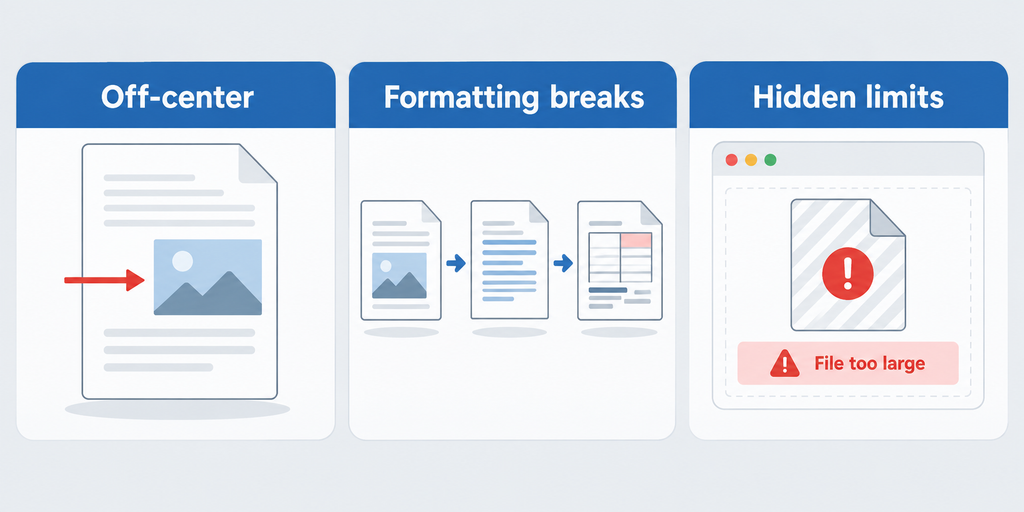
Problem 1: The image has poor relative position to text. The floaty nature of images makes it very difficult to properly position an image relative to text.
Problem 2: Formatting always goes out the window when a worksheet is converted to Word. Sometimes a free online tool can save time when formatting a simple worksheet. More times than not, using a free online tool to edit a worksheet becomes a large waste of time when you have to spend a lot of time adjusting and restoring formatting.
Problem 3: Online tools have limits. The free online editor that you used to create that one-page handout might not be able to create longer documents. Embedding a lot of images makes documents larger. A tool might display a size limit, or a document might have a watermark. In the case of teaching, tools cannot always be relied upon if a teacher’s internet connection is not stable.
Both of these issues stem from the same place. The tool is not created for the task at hand. If modifying PDFs is a core part of your work, for things like worksheets and teaching materials, you ought to use a tool built for that.
What Actually Works: A Dedicated PDF Editor
Here’s what makes it work for teachers:
A tool that actually allows teachers is UPDF. I have no idea why I did not switch to UPDF sooner. It allows teachers to edit documents exactly how they want.
Direct Insertion. When the UPDF toolbar appears, click the image tool and insert an image wherever you like. All other content of your PDF (text, tables, etc.) will stay in their original location. Images can be moved to other locations and resized. Images can also be rotated.
Exact positioning. Limiting distortion when altering the size of an image is important. Students notice weird looking images and may think you are careless when you aren’t. Image positioning is important when you are trying to be neat.
This tool can be very helpful when you need to be neat with image positioning. Note that you can adjust the size of your image, and crop images to the degree necessary for the scenario.
Works offline. I don’t need to upload anything to the cloud and I can use UPDF without an internet connection. This is extremely helpful when I need to do teaching-related document prep at home or in the classroom, where the internet connection is unreliable.
Edits scanned documents. Using UPDF, I can edit a scanned document or a photo of a document. I can even add photos to existing editable text.
Cross device synchronization. The UPDF Cloud service lets me sync edited PDFs between my laptop and desktop. This is very convenient when I need to prepare lessons between multiple locations.
This guide shows you how to add images to PDFs and shows you how to edit layouts, design elements, and work around issues like how to include scanned worksheets. It gives a complete end to end guide on the process and includes lots of pictures.
The Bottom Line
Teachers have been forced to use cumbersome, difficult to use, and sometimes unreliable methods to edit and include scanned worksheets in PDFs. Some methods break the format of the document. Others put restrictions on the size of the file. Still others require a reliable internet connection.
A good PDF editor removes the restrictions teachers have when editing PDFs. An easy to use, reliable, and free online PDF editor can be used when the restriction on the number of edits is low. However, if the teacher relies on PDFs to teach and give out instructional materials, then an editor like UPDF can be used to edit the PDFs and give out teaching resources.