
How To Set Google Doc Sharing Permissions For Student Privacy
How To Set Google Docs Sharing Permissions For Student Privacy
Cloud-based word processing and file sharing have transformed classroom collaboration. Yet the same features that make cloud tools convenient also introduce new challenges around student privacy, document integrity, and responsible use.
In schools, access limitations—such as weak Wi-Fi, district filters, or differing home connectivity—are frequent obstacles. But protecting student data and maintaining document security remain the most important responsibilities when using Google Drive and Docs in educational settings.
See also: Essential EdTech Tools and Examples of Education Technology.
Understanding Google Docs Sharing Permissions
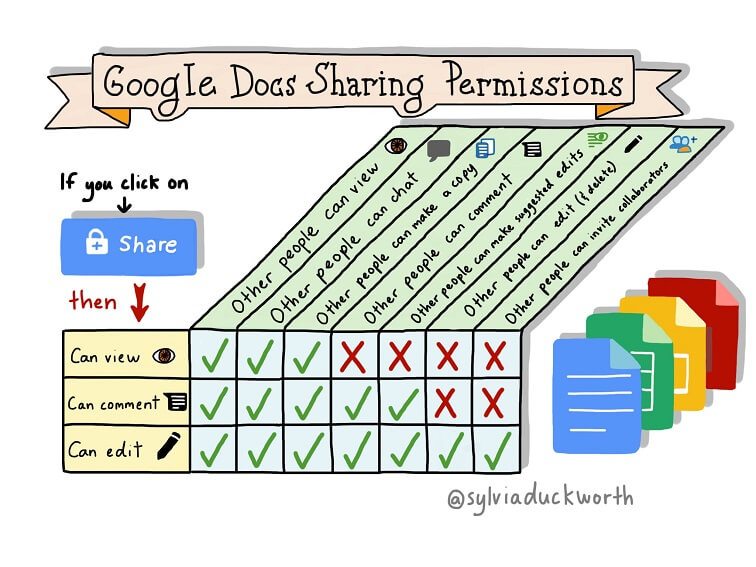
Google Docs provides fine-grained sharing controls that let you specify who can view, comment, or edit a document. These permissions are central to protecting student information and maintaining control of instructional materials.
How to Share Files Privately
1. In Google Drive, click the file you want to share and select Share.
2. Under People, enter an email address to share directly with specific individuals.
3. Click the down arrow next to their name to set their permission level:
- Viewer — Can read the file but not make changes.
- Commenter — Can add suggestions or comments without altering text.
- Editor — Can modify content, structure, and formatting.
To share by link, click Get shareable link and select the desired visibility level. These options may vary depending on whether you are using a personal Google account or a managed Workspace for Education account.
Link-Sharing Options (2026)
- Restricted (Default) — Only people explicitly added can open the file.
- Your Organization — Available to anyone logged in with an approved school or district account.
- Anyone with the Link — No sign-in required; anyone possessing the link can access the file.
- Public on the Web — Fully open; searchable by anyone. Use only for general, non-sensitive resources.
For classroom work, choose the Restricted or Your Organization options to limit access to verified users. Avoid public link sharing for student work or assessment documents.
Stop Sharing or Revoke Access
To remove a collaborator:
- Open the file and click Share.
- Select Advanced (or “Share settings”) → find the user to remove.
- Click the X next to their name → Save changes.
Deleting a file that you own removes it from Drive, but anyone who already had access can still view or copy it until you Delete forever from the Trash. If you delete a file that you do not own, it disappears from your Drive view but remains accessible to others with permissions.
Teaching Digital Responsibility
Understanding sharing permissions provides an authentic way to teach digital citizenship. Students learn that online collaboration requires responsibility: protecting peers’ privacy, citing shared content properly, and limiting unnecessary file exposure.
Encourage students to verify visibility settings before sharing assignments and to keep sensitive materials in restricted folders. Reinforce that sharing settings are not just technical details—they are ethical decisions about who can see and modify digital work.
See also: 9 Rules For Digital Citizenship.
Privacy Notes
- Documents stored in Google Drive are encrypted in transit and at rest, but not with end-to-end encryption. Google Workspace for Education admins can manage access policies and audit sharing activity.
- Use folders with restricted access for student work. Consider enabling “View Only” when sharing exemplars or templates.
- Always verify that files shared for feedback or collaboration do not include student identifiers unless required by your district’s data policy.
You can review Google’s current documentation on sharing settings and privacy controls at Google’s official Drive sharing permissions guide.